AI Video Prompt Builder
Build consistent, structured prompts for AI video tools like Veo, Sora and Kling. Save your characters once, then generate scene after scene with the same face, outfit and voice.
Step 1 · Character card
Saved automatically in your browser so every scene uses the same character.
Character 1
Save my characters — stored in this browser. Export a backup or move them to another device.
Step 2 · Scene details
Step 3 · Result
 Fill the form and press Generate to see your result.
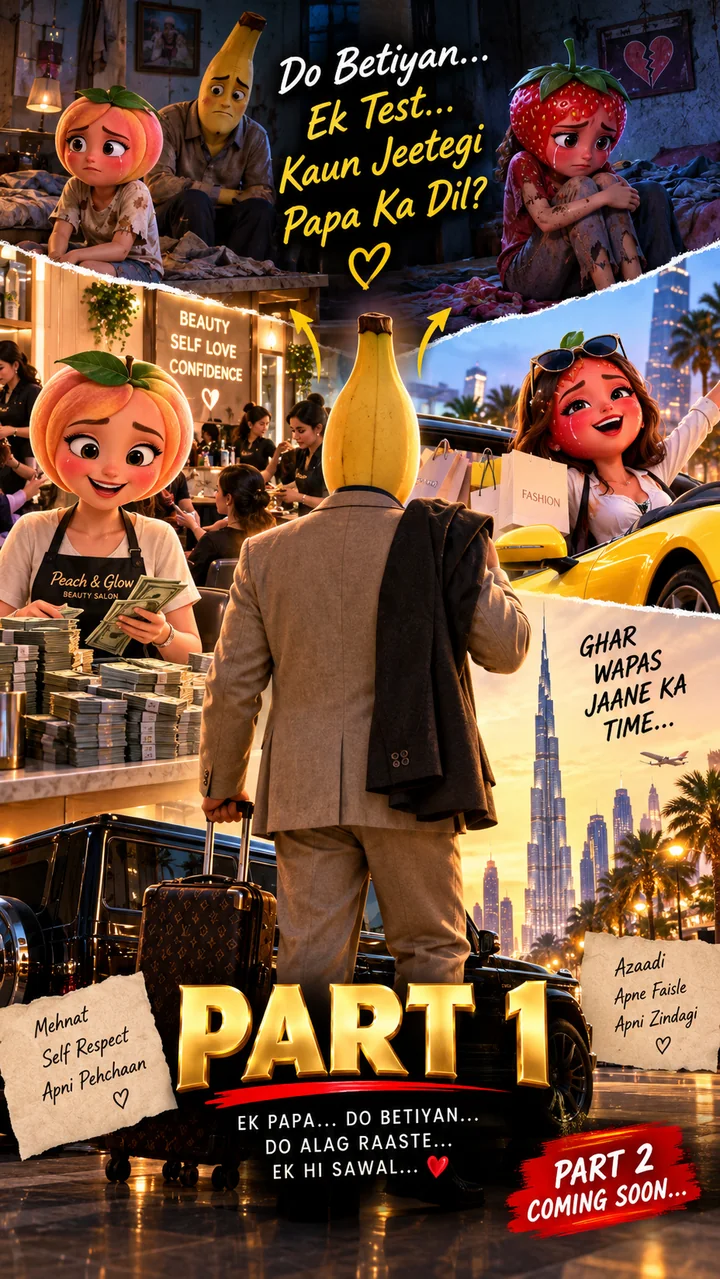
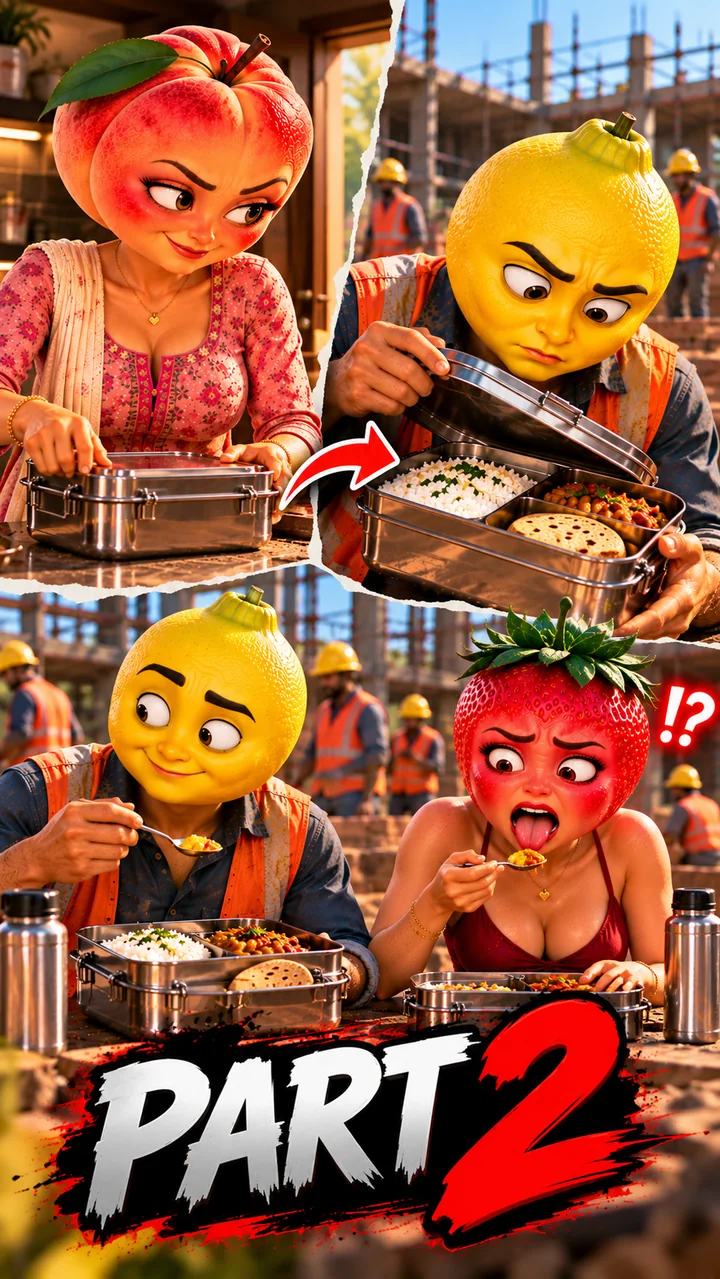
Made with prompts like these
Character-led AI stories built scene by scene with consistent visual prompts.
Fill the character card once — name, face, hair, outfit, personality and voice. It is saved in your browser.
Describe the scene: location, action, camera angle and movement, lighting, mood, art style and dialogue.
Press Generate to get a structured prompt, then copy it into Veo, Sora, Kling or Runway.
How to use this tool
- Fill the character card once — name, face, hair, outfit, personality and voice. It is saved in your browser.
- Describe the scene: location, action, camera angle and movement, lighting, mood, art style and dialogue.
- Press Generate to get a structured prompt, then copy it into Veo, Sora, Kling or Runway.
- Use “Add another scene” for every next shot, then “Copy all scenes” to export your full sequence.
About AI Video Prompt Builder
Consistency is the hardest part of AI video. Models like Veo, Sora and Kling generate each clip independently, so the same description written slightly differently gives you a different face, a different outfit and a different voice. The result looks like a new actor in every shot, which breaks any story longer than eight seconds.
This builder fixes that with a character card. You write the character once — name, age or type, face and hair, outfit, personality and voice style — and the tool re-inserts that exact description at the top of every prompt it generates. Because the subject block never changes, the model has far less room to improvise, and your character stays recognisable from scene one to scene ten.
The prompt itself is written in the structure video models respond to best: subject, action, setting, camera, lighting, style, dialogue and a negative prompt. Separating these sections stops the model from mixing your camera instruction into the character description, which is a common reason prompts get ignored. The camera block includes angle, movement, aspect ratio and duration, so vertical reels stay vertical and an eight-second shot is planned as an eight-second shot instead of being cut short.
Dialogue support covers Hindi, English and Hinglish, and every dialogue line is paired with a lip-sync note so the mouth movement matches the spoken words rather than floating out of time. The negative prompt blocks the usual failures — visible text, watermarks, extra fingers, changed faces and swapped outfits — which saves you several wasted generations per scene.
When you are building a full story, add each shot to the numbered scene list and copy the whole sequence at once. That gives you a shot list you can paste into a document, hand to an editor, or feed into your video tool one scene at a time. Nothing is uploaded: your characters live in your own browser storage and stay there.
Examples
- SUBJECT: Raju, 25-year-old Indian man, round face with short curly hair and light beard, wearing a blue kurta — ACTION: sells chai at a busy railway platform.
- DIALOGUE (Hinglish): “Bhai, ek chai aur? Aaj toh train late hai!” with accurate lip-sync.
FAQ
Related tools
- Story Scene SplitterPaste a story and split it into numbered 8-second scenes.
- Reel Hook Generator20+ proven hook formulas filled with your topic and niche.
- Caption + Hashtag GeneratorCaptions by tone plus 30 hashtags grouped by niche.
- Instagram Font GeneratorTurn text into bold, script, gothic and bubble Unicode styles.